QR/ Check-in URL help you manage event entry smoothly and track attendance. You can create multiple lists for different purposes, such as VIP entrance, general admission, or specific session tracking.
Each check-in list can be accessed by multiple staff members simultaneously, making it perfect for events with multiple entry points.
Creating Your Check-In List
1. Start list creation
From your event dashboard, click "Create Check-In List" to begin.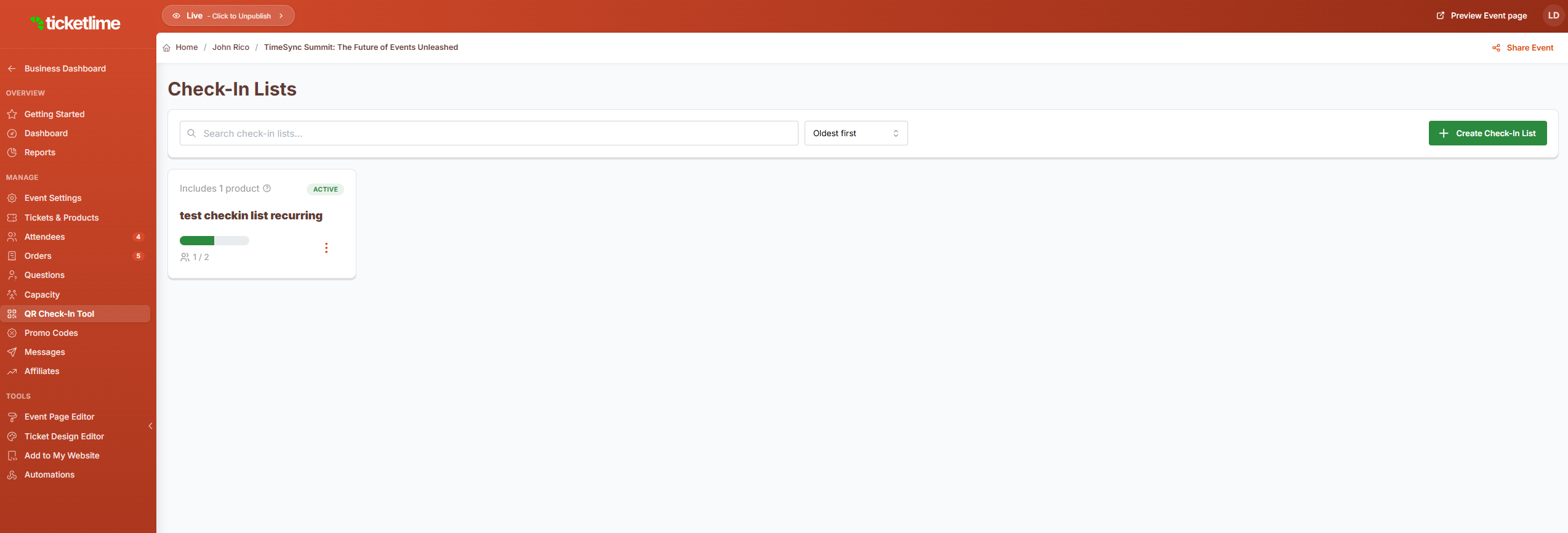
2. Name your list
Give your list a descriptive name that helps staff identify its purpose.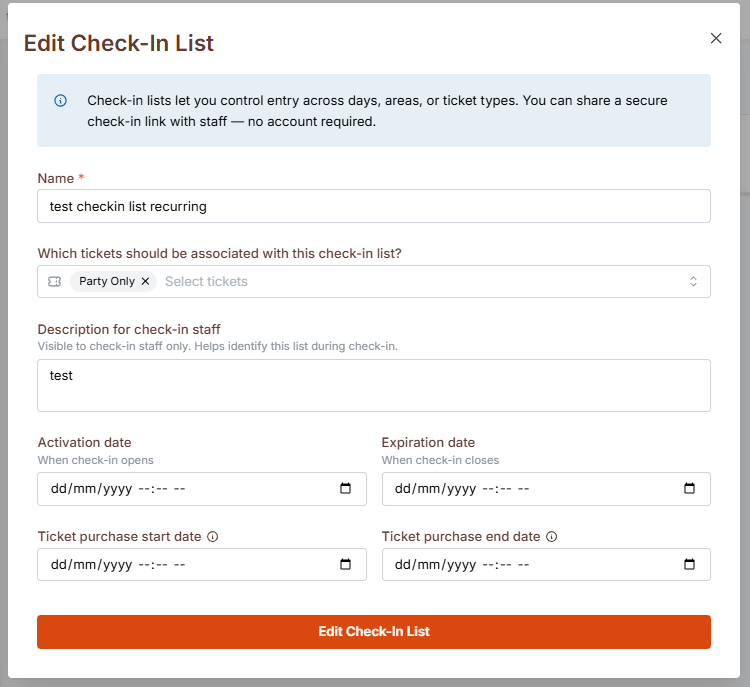
3. Associate ticket types
Select which ticket types can be checked in using this list. This helps prevent unauthorized access levels.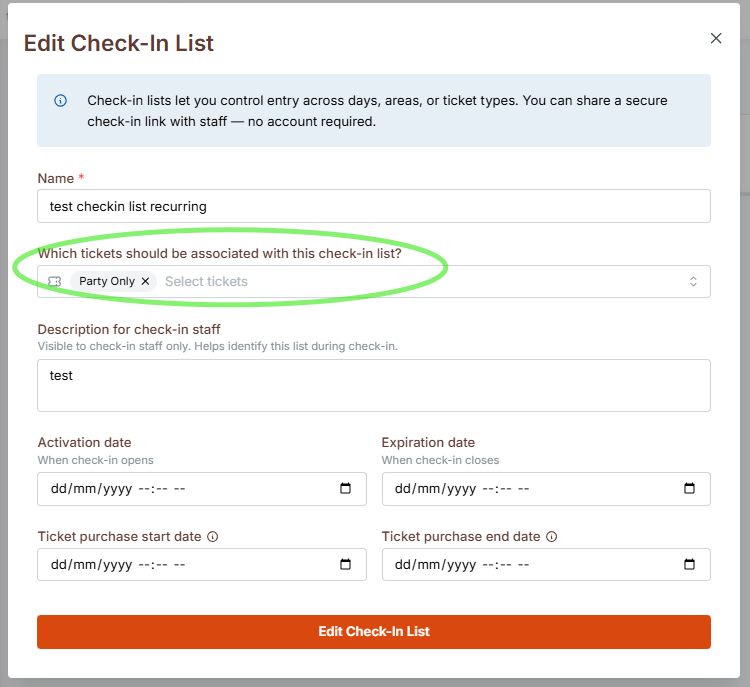
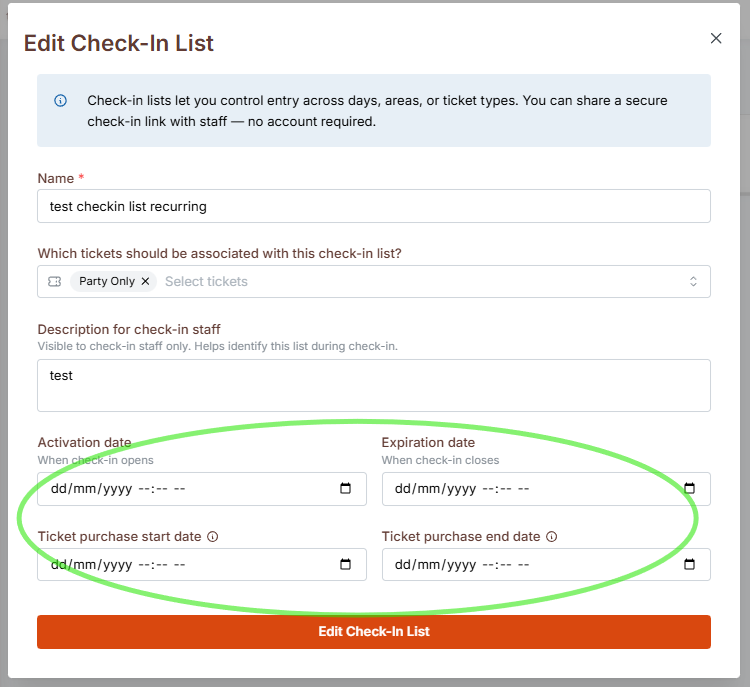
4. Set time restrictions
Optionally set activation and expiration dates to automatically enable/disable the list, as well as Ticket Purchase start/ end date ( Useful for Recurring Events)
5. Create the list
Click "Edit Check-In List" to finalize your setup.
Using the Check-In List
6. Access the check-in interface
Open the check-in page from the dropdown menu to start processing attendees.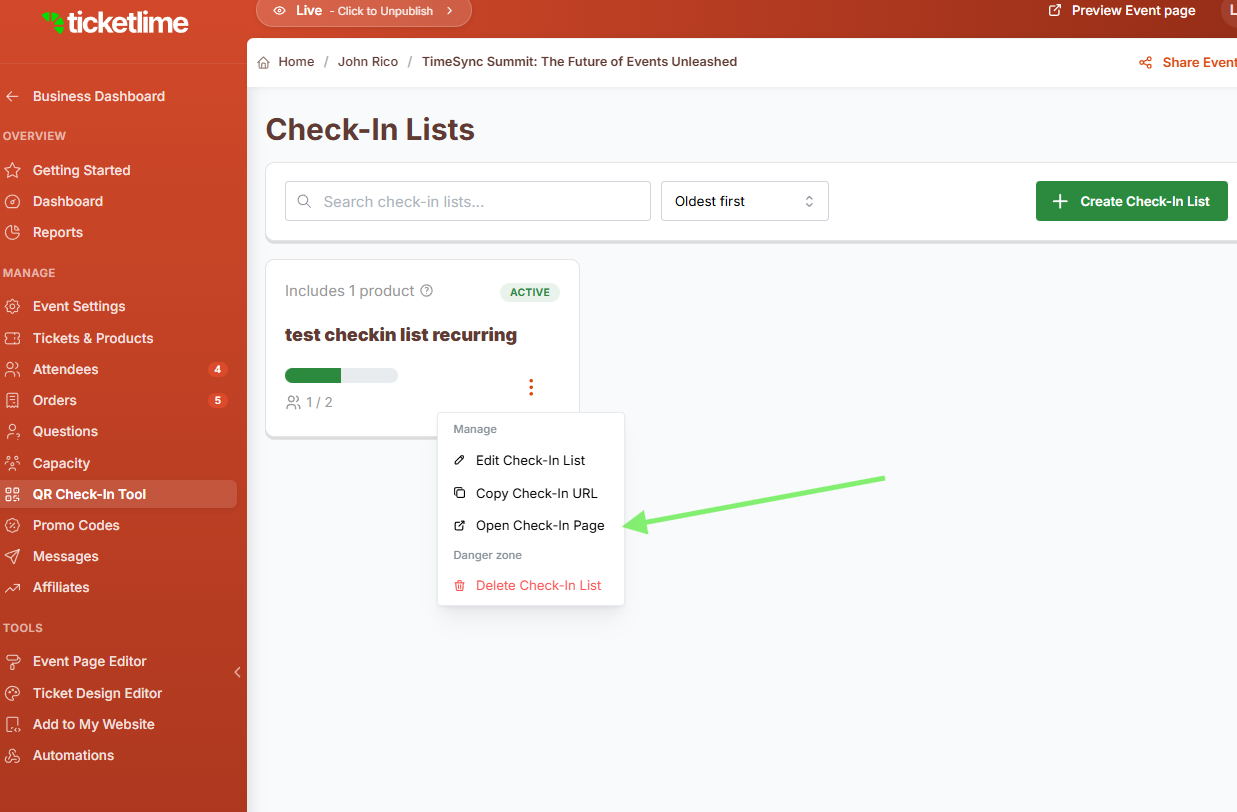
7. Check in attendees
Use the "Check In" button to mark attendees as arrived.

8. Check out capability
If needed, you can check out attendees using the "Check Out" button
QR Code Scanning
9. Enable QR scanner
Click "Scan QR Code" to use the device's camera for quick check-ins.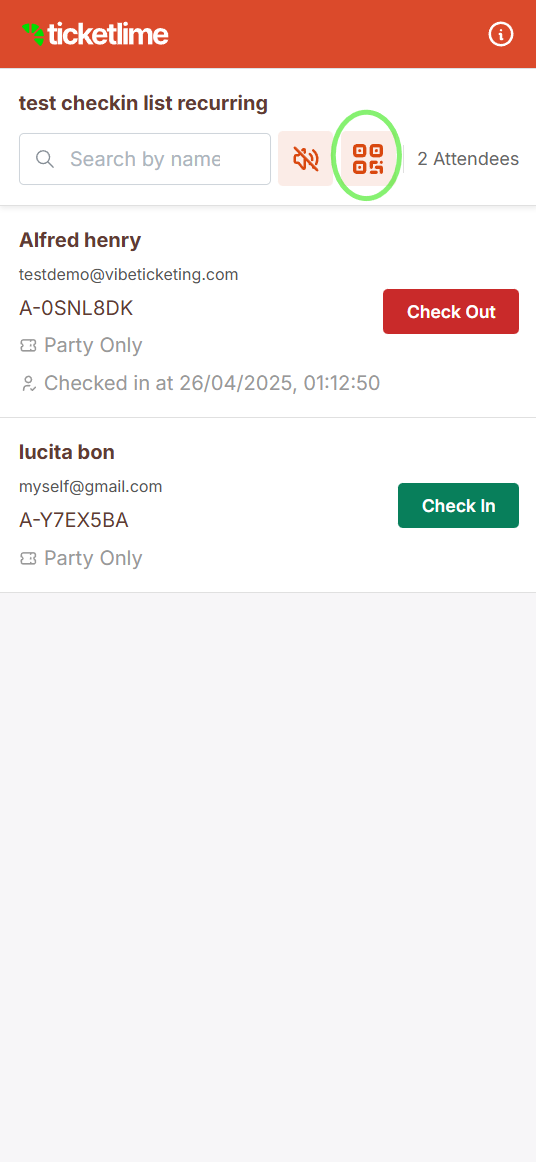
Was this article helpful?
That’s Great!
Thank you for your feedback
Sorry! We couldn't be helpful
Thank you for your feedback
Feedback sent
We appreciate your effort and will try to fix the article